Ultimate Guide to AI Workflow Automation: Connect Zapier, ChatGPT, and Notion for 10X Productivity
Most people use AI like a fancy calculator: open ChatGPT, type a prompt, copy the answer, close the tab.
The real power starts when you connect AI to your actual tools—your notes, tasks, and apps—so that work happens automatically in the background. This ultimate AI workflow automation guide will show you exactly how to connect the tools you already use.
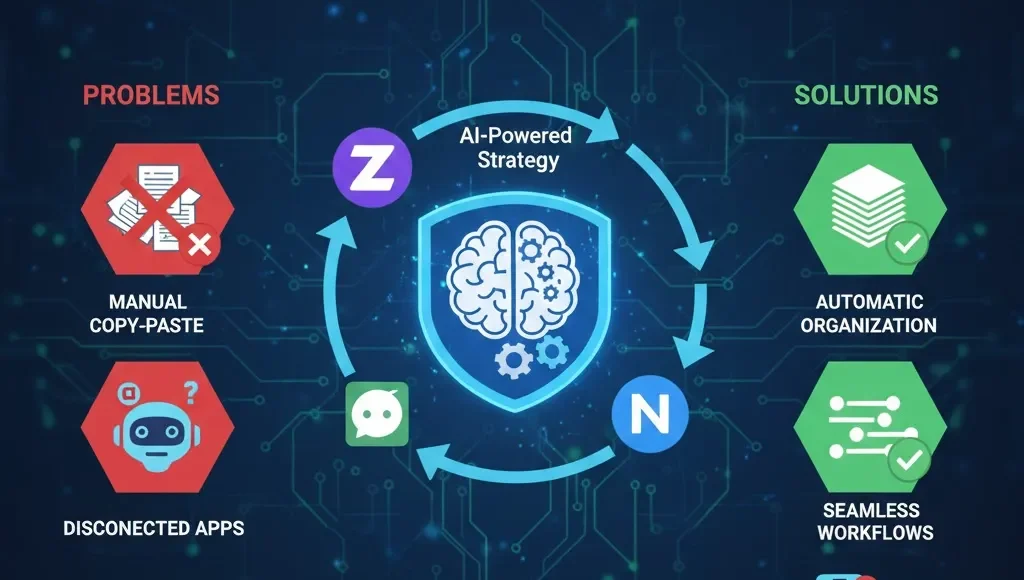
On Prodigy AI Tools, this is exactly how our team works every day. We use a simple, robust stack—Zapier + ChatGPT + Notion—to send meeting notes into Notion, auto-summarise long content, create task lists, and keep projects in sync without manual copy-paste.
This guide walks you through that same system in clear English so you can build your own AI workflow automation, even if you’re not a developer.
What Is AI Workflow Automation (In Simple Words)?
AI workflow automation means:
Let the computer notice an event, send the data to AI, and then do something useful with the result, without you touching anything.
For example:
-
New meeting note is added → AI summarises it → summary is saved in a Notion database.
-
New lead form is submitted → AI qualifies the lead → result is written to a CRM table in Notion.
Instead of asking “What can ChatGPT do?”, you start asking: “What should happen every time this event occurs?” Zapier is the glue, ChatGPT is the brain, and Notion is the place where everything lives.\
Tools You Need: The Holy Trinity of Automation
You don’t need to be a coder, but you do need a few accounts set up.
Notion: Your Structured AI Database
You’ll use Notion as the central place to store and organise your AI outputs.
-
Your database of records (tasks, notes, ideas, content)
-
The place where AI outputs are stored and organised
Zapier: The Intelligent Glue
Zapier is a no-code automation platform that connects apps like Notion, Google Calendar, Gmail, and many others.
You’ll use Zapier to:
-
Watch for triggers (e.g., “New page in Notion database”)
-
Send that data to ChatGPT
-
Receive the AI result and push it back into Notion
ChatGPT / OpenAI API: The Brain
ChatGPT (via OpenAI API) is your AI engine.
Our Preference: Hum aksar OpenAI API key use karte hain Zapier mein, kyunki yeh zyada control aur speed deta hai.
Step 1: Plan Your First Simple Workflow (Don’t Overthink It!)
Don’t start with a huge “automate my life” idea.
Mera tajurba hai ki jab aap chote workflow se shuru karte hain, toh debugging aasan hota hai. Pick one clear, repeatable task that already takes time every week.
-
Good starter workflows: Auto-summarise notes or auto-clean and structure ideas.
-
Where do I want the final result to live? (The answer is almost always Notion.)
Step 2: Create Your Notion Database (The Output Destination)
Let’s use a concrete example: AI-powered meeting summaries.
In Notion:
-
Create a new database called “Meetings – AI Summary”.
-
Add these properties (columns):
Title (Name),Raw Notes (Text / Long text),AI Summary (Text), andAction Items (Text). -
Add a test entry with some rough notes.
[IMAGE PLACEHOLDER 1: Notion Database Structure Screenshot]
Step 3: Set Up Your Zapier Trigger (The Watchdog)
Now we connect Notion (your data) to Zapier (your automation).
-
In Zapier, click “Create Zap”.
-
For the Trigger app, choose Notion.
-
Select a trigger like: “New Database Item” (yeh sabse aasan hai).
-
Connect your Notion account and select the “Meetings – AI Summary” database.
[IMAGE PLACEHOLDER 2: Zapier Trigger Setup Screenshot]
Step 4: Add a ChatGPT Action to Process Text (The Brain Work)
Next, we add the AI step. This is where the magic happens.
-
Click “Add Action”. Search for “ChatGPT” or “OpenAI (GPT-3/4)”.
-
In the prompt field, write a clear, structured instruction. Mera secret: Prompt ko hamesha role-based banao.
For our example, use this Prompt:
“You are an expert meeting assistant. Read the following meeting notes and do three things: 1. Give a short 3–4 sentence summary. 2. List 3–7 clear action items with owners if mentioned. 3. Highlight any open questions. Meeting notes: {{Notion Raw Notes field}}”
Personal Story: “First time mera Zap fail hua kyunki maine ‘Raw Notes’ field ki jagah poora page URL map kar diya tha. Tab seekha ki mapping karte waqt sirf wahi field select karo jismein raw text ho!”
[IMAGE PLACEHOLDER 3: ChatGPT Prompt Mapping Screenshot]
Step 5: Send AI Output Back to Notion (The Storage)
Now, save the AI result back into your Notion database.
-
Add another Action in Zapier. Choose Notion again.
-
Select “Update Database Item”.
-
Map the Data: Map the item ID from the trigger, and then map the AI Summary and Action Items fields in Notion to the corresponding parts of ChatGPT’s output.
Congratulations—that’s your first AI workflow automation. Jab yeh Zap live chalta hai, toh woh ehsaas hi alag hota hai!
5 Ready-Made Workflow Ideas You Can Copy (Proven by Our Team)
Here are ideas we’ve seen work well for creators, teams, and solo founders:
1. Content Idea to Blog Outline
-
Trigger: New row in a Notion “Ideas” database.
-
AI Step: Turn a short idea into a clean H2/H3 outline.
2. YouTube or Podcast Summary into Notion
-
Trigger: New note with pasted transcript.
-
AI Step: Summarise content + extract main topics + list 5 pull quotes.
3. Lead Form to Qualified CRM Entry
-
Trigger: New form submission (Typeform, etc.).
-
AI Step: Ask ChatGPT to “Score this lead from 1–5 (cold to hot). Explain why. Summarise their problem.” (Yeh hamare sales team ke liye game-changer tha).
4. Daily Journal to Structured Log
-
Trigger: New entry in a Notion “Daily Log” database.
-
AI Step: Ask AI to detect mood (1–5), extract 3 wins, and suggest 1–3 clear next actions.
5. Support Ticket Triage
-
Trigger: New row in a Notion “Support Inbox”.
-
AI Step: Categorise ticket, guess urgency, detect product area.
Best Practices: Speed, Cost, and Privacy (Our Lessons Learned)
A few guidelines to keep your automations safe and efficient:
1. Be Careful with Sensitive Data
Hamari policy hai ki hum passwords ya raw financial info ko generic AI actions par nahi bhejte. For internal workflows, check your company’s policy. Where possible, anonymise data before sending it to AI.
2. Control Token Usage
Yeh sabse zaroori hai agar aap cost control karna chahte hain! Keep prompts short but clear, and ask for concise answers (e.g., “max 300 words”).
3. Start Small, Then Scale
Jab maine shuru kiya tha, maine do din mein 10 Zaps bana diye, aur sab toot gaye. Begin with one Zap. Watch how it behaves for a week. Only then clone or extend it. (See our deep dive on [SLMs vs LLMs: Why Small Language Models are Important] for more on cost control and efficiency).
Common Mistakes to Avoid
From our own tests and client setups, a few mistakes appear again and again:
-
Too many steps in one Zap: Break complex workflows into smaller Zaps.
-
Vague prompts: Be specific about format and required details.
-
No human review where needed: For critical messages (emails to clients), keep a human in the loop.
Conclusion: Build Your Own AI “Second Brain”
AI workflow automation is not about replacing you. It’s about removing the boring glue work between your tools so you can focus on thinking, creating, and making decisions.
At Prodigy AI Tools, this simple stack runs a big part of our day-to-day content and operations, and it works just as well for solo creators, small teams, and startups.
Start with one small workflow, ship it, and live with it for a week. Once you feel the difference, you’ll naturally see 10 more places where AI workflow automation can save hours every month.


Das klingt wirklich nach einer super Lösung, um den Workflow effizienter zu gestalten! Ich bin gespannt, wie ich das in meine Arbeit integrieren kann.