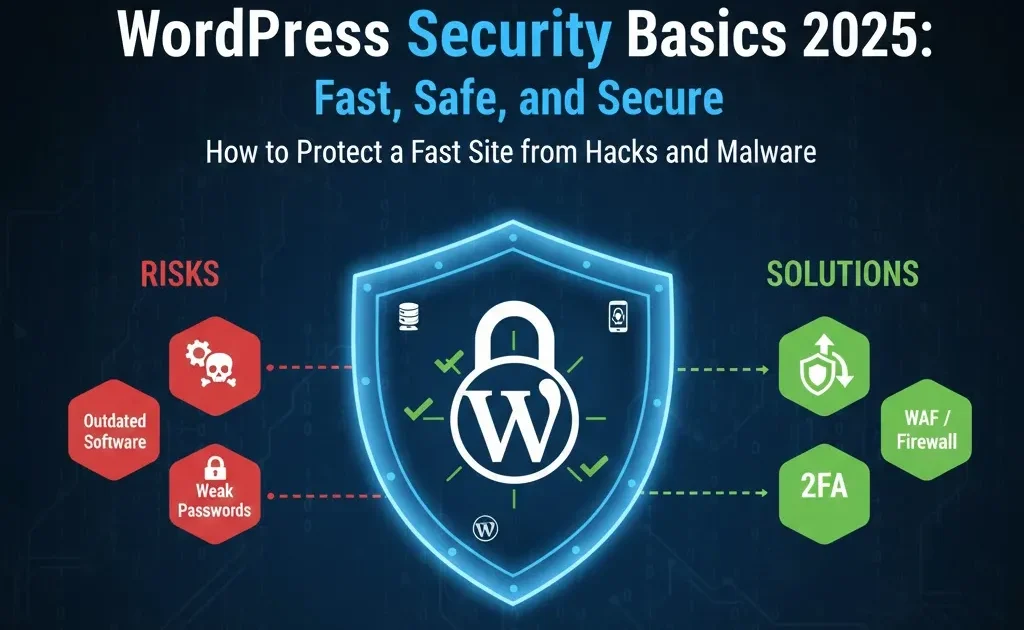
WordPress Security Basics 2025: How to Protect a Fast Site from Hacks and Malware
Here is a simple truth often overlooked: A super-fast site that gets hacked is still a failure. You might have achieved top Core Web Vitals scores, but a single security breach can instantly destroy your SEO rankings, obliterate user trust, and get your AdSense account revoked. The time and money spent on performance optimization become worthless.
This guide is a practical, non-technical security roadmap designed for anyone running a WordPress site in 2025. It covers the essential steps to build a robust defense layer so your speed and your integrity both stay protected.
Why WordPress Sites Get Hacked
Common attack motives
Hackers often target sites not for the data itself, but for the resources:
-
Spam SEO: Injecting hidden links and keywords to boost their own malicious sites.
-
Phishing pages: Using your domain credibility to host fake login pages for banks or major services.
-
Malware distribution: Using your server to host and spread malicious files.
-
Botnets / cryptomining: Using your server resources (CPU and bandwidth) for illegal activities.
Typical vulnerabilities
Most compromises are not complex zero-day attacks, but simple security failures.
-
Outdated components: Running outdated core, themes, or plugins that contain known, publicly available exploits.
-
Weak passwords: Using simple, common, or reused passwords.
-
Nulled software: Using pirated themes or plugins that are pre-loaded with backdoors or malware.
-
Misconfigured hosting: Lax file permissions or lack of server-side firewalls.
Security Mindset – Performance and Security Together
Fast but fragile vs fast and secure
Performance optimizations (like caching and CDNs) are your offense, making the site fast, while security is your defense layer. Building resilience means integrating a basic security stack (firewall, backups, access control) alongside your speed tweaks instead of treating them separately. A properly configured security setup does not have to slow down a fast site; many modern tools are optimized for performance.
Principle of least privilege
The principle of least privilege says every user, process, or component should only have access to what it absolutely needs.
-
Only grant administrator access to people who truly need it.
-
Remove unused themes, plugins, and old user accounts.
-
Ensure plugins and themes run with minimum required permissions instead of full access.
-
Keep Everything Updated (Core, Themes, Plugins)
Why updates matter
Outdated software is consistently one of the biggest reasons WordPress sites get hacked. Most hacked sites use vulnerabilities that were already patched months or years ago in a security update, so simply staying updated shuts the door on many automated attacks.
Safe update workflow
Never update blindly on a live site; follow a controlled process.
-
Staging or backup: Create a full backup or use a staging environment before updating.
-
Update in batches: Update WordPress core first, then themes, and finally plugins.
-
Quick site check: Immediately test key pages, checkout flows, and main forms to ensure nothing broke.
-
Production: Move tested changes from staging to the live site.
You can enable auto-updates for trusted, non-critical plugins and themes, but keep core and critical commerce/security plugins on manual updates for more control.
Hardening Logins and User Accounts
Strong passwords and password managers
Weak passwords are still a primary entry point for brute-force attacks. Use long, unique passwords (16+ characters) for all important accounts, especially admin roles, hosting and email. Always use a password manager (such as 1Password, Bitwarden, or LastPass) to generate and store complex passwords instead of reusing simple combinations.
Change default usernames and limit admin accounts
Using the default “admin” username makes brute-force attacks much easier because half the credentials are already known.
-
Change the default “admin” username to something unique and non-obvious.
-
Limit administrator roles to the smallest possible number of people.
-
Assign roles like Editor, Author, or Contributor for day-to-day content tasks.
Two-factor authentication (2FA)
Two-factor authentication (2FA) is one of the most effective ways to stop brute-force and credential-stuffing attempts. It adds a rotating code from an app (Authy, Google Authenticator, etc.) in addition to the password, so even a stolen password alone is not enough to log in.
Limit login attempts and protect wp-login
Locking down the login endpoint dramatically reduces automated attacks.
-
Limit failed attempts: Use a security plugin or dedicated login-limiter to block an IP after a small number of failed attempts (for example, 3–5 tries).
-
Add CAPTCHA: Add CAPTCHA or reCAPTCHA to stop bots from hammering your login form.
-
Optional URL change: Optionally change the default /wp-login.php or /wp-admin/ URL to a custom slug to make automated scans less effective.
Securing WordPress Files and Configuration
Disable file editor and protect wp-config.php
The built-in theme and plugin editor in the WordPress dashboard can be abused if an attacker gets admin access. Turn it off by adding this line to wp-config.php:
define( 'DISALLOW_FILE_EDIT', true );
The wp-config.php file holds your database credentials and other sensitive settings, so it should be tightly protected. Where supported by the host, move wp-config.php one level above the public root or lock it down using server rules.
Correct file permissions
Incorrect file permissions let attackers upload or modify files more easily.
-
Avoid 777 permissions, which allow anyone to read, write, and execute.
-
As a general rule, set files to 644 and directories to 755 so only the server and site owner can change them.
Restrict access to sensitive areas
Use your server configuration (.htaccess for Apache or rules for Nginx) to restrict what is publicly accessible.
-
Block direct access to wp-config.php and other core configuration files.
-
Restrict access to /wp-admin/ so only logged-in users or specific IPs can reach it.
-
Disable or strictly limit XML-RPC if you do not rely on it, as it is a common target for brute-force and DDoS-style attacks.
Choose Secure Hosting and HTTPS
Security features to expect from a host
Your hosting environment is the foundation of your security. Look for hosts that provide:
-
Firewall / WAF: A Web Application Firewall to filter malicious traffic, block SQL injection, XSS, and other common attacks.
-
Malware scanning: Regular server-side scanning and automatic quarantine of infected files.
-
Automatic backups: Frequent, reliable backups stored separately from the production environment.
-
Account isolation: Separation between accounts so one hacked site on shared hosting cannot easily infect others.
Always use HTTPS
Running your site over HTTPS is now a baseline requirement, not an upgrade.
-
Encryption: SSL/TLS encrypts traffic between the browser and your server, protecting logins and any sensitive data. Many hosts offer free SSL via Let’s Encrypt.
-
HSTS: HTTP Strict Transport Security forces browsers to use HTTPS for future visits, reducing the risk of protocol downgrade attacks and mixed-content issues.
Backups: Your Non-Negotiable Safety Net
What a good backup strategy looks like
Backups are your last line of defense if everything else fails. A widely recommended guideline is the 3-2-1 rule:
-
3 copies of your data (the live site plus two backup copies).
-
2 different storage types (for example, server + external drive or server + cloud).
-
1 copy stored off-site (cloud storage such as Amazon S3, Google Drive, Dropbox, or a dedicated backup service).
Ensure backups include both the database (content, settings) and all files (core, themes, plugins, uploads).
Backup tools and schedules
Use automated backups so you are never relying on manual habits alone.
-
Schedule at least daily automatic backups via your host or plugins like UpdraftPlus, Duplicator, BlogVault, or BackupBuddy.
-
Always take a manual backup before major changes such as core updates, switching themes, or installing big plugins.
-
Store at least one copy in an off-site location separate from your main server.
Test your restore
Backups are only useful if they actually restore correctly.
-
Periodically restore a backup to a staging environment to confirm it works and to practice the process.
-
Make sure you know which backup is “clean” so you do not reintroduce malware by restoring an infected snapshot.
Using a Security Plugin (Firewall, Malware Scan, Alerts)
What a security plugin should do
A good WordPress security plugin acts as a central control panel for multiple protections. Look for features like:
-
Web Application Firewall (WAF): Filters bad traffic before it reaches WordPress.
-
Malware scanning: Deep scanning of files for malicious code and backdoors.
-
Login protection: 2FA enforcement, login attempt limiting, and brute-force protection.
-
File change monitoring: Alerts when critical files are added, changed, or removed.
-
Notifications: Email alerts for critical events like repeated failed logins or detected malware.
Example setup (Wordfence / Sucuri / iThemes)
The exact plugin is less important than configuring one solid solution properly.
-
Install a reputable security plugin such as Wordfence or Sucuri.
-
Run an initial full scan to detect existing vulnerabilities or malicious files.
-
Enable and optimize the firewall (extended or “learning” mode, depending on plugin instructions).
-
Configure rate limiting, login protection, email alerts, and XML-RPC restrictions if you do not use it.
Avoid over-stacking plugins
Installing multiple overlapping security suites can cause conflicts and slowdowns. One well-configured, reputable security plugin is usually better than three half-configured tools all trying to do the same thing.
Avoiding Nulled Themes, Plugins and Dangerous Code
Risks of pirated or nulled software
Using nulled or pirated themes and plugins is one of the fastest ways to get hacked.
-
Hidden malware/backdoors: Nulled packages often include code that grants attackers ongoing access.
-
Spam links: Many inject hidden outbound links, which can get your domain penalized or blacklisted.
-
No updates: You never receive security patches, so any vulnerability stays open permanently.
Safe sources only
Reduce risk by limiting yourself to trusted sources.
-
Use the official WordPress.org repository for free themes and plugins where possible.
-
For premium products, buy from recognized marketplaces (like ThemeForest, CodeCanyon) or the original developer.
-
Remove unused themes and plugins entirely (not just deactivate) so they cannot be exploited.
What To Do If Your Site Gets Hacked
Immediate containment steps
Speed matters when you suspect a breach.
-
Maintenance mode: Put the site into maintenance or “coming soon” mode if the compromise is visible or serious.
-
Change passwords: Immediately change all WordPress, hosting, FTP, and database passwords.
-
Update everything: Bring WordPress core, themes, and plugins to their latest versions.
-
Check with host: Contact hosting support; they may provide logs, malware cleaning, or server-level fixes.
Clean-up workflow
A structured cleanup avoids missing hidden backdoors.
-
Run malware scan using your security plugin or an external scanner like Sucuri SiteCheck.
-
Remove infected or suspicious files, especially unfamiliar PHP files or modified core files.
-
If the compromise is deep or unclear, restore the site from the last known-clean backup and then re-secure it.
Post-incident hardening
Once the site is clean, lock things down so it does not happen again.
-
Identify the root cause (outdated plugin, weak password, nulled theme, insecure host) and fix that specific gap.
-
Tighten login security, enforce updates, and review hosting security options.
-
If search engines have flagged your site, use Google Search Console or similar tools to request a review after cleanup.
-
Ongoing Security Maintenance Checklist
Security is not a one-time project; it is an ongoing routine. Use this as a minimum weekly/monthly checklist:
-
Update WordPress core, themes, and plugins regularly (ideally weekly).
-
Review user accounts and remove unused or suspicious admin accounts.
-
Check backup logs and verify that at least one recent off-site backup exists.
-
Skim security plugin logs for unusual login attempts, lockouts, or file changes.
-
Run a quick malware and vulnerability scan at least once per month.
-
How to Use AI Content Gap Analysis in 2025 to Steal Competitor Traffic (Ethically)Ultimate Guide to AI Workflow Automation: Zapier, ChatGPT, and Notion for 10X Productivity
Call to Action
Security starts now, not after a hack. Follow this “Today Plan”:
-
Enable automatic backups (or set up a proper backup plugin with off-site storage).
-
Turn on 2FA for all admin accounts and limit login attempts.
-
Install and configure one solid security plugin with firewall and malware scanning.
-
Remove all unused themes, plugins, and extra admin users.
Then move to a “This Week Plan”: Run a full security audit using the checklist above and fix one category per day. Combine this with the performance tactics in your Core Web Vitals, caching, and image optimization guides to build a complete site-health roadmap, and simply replace the placeholder internal links with real URLs once those articles are live.


One Comment on “WordPress Security Basics 2025: Fast, Safe, and Secure”